How to download an AllTrails route to your Suunto watch
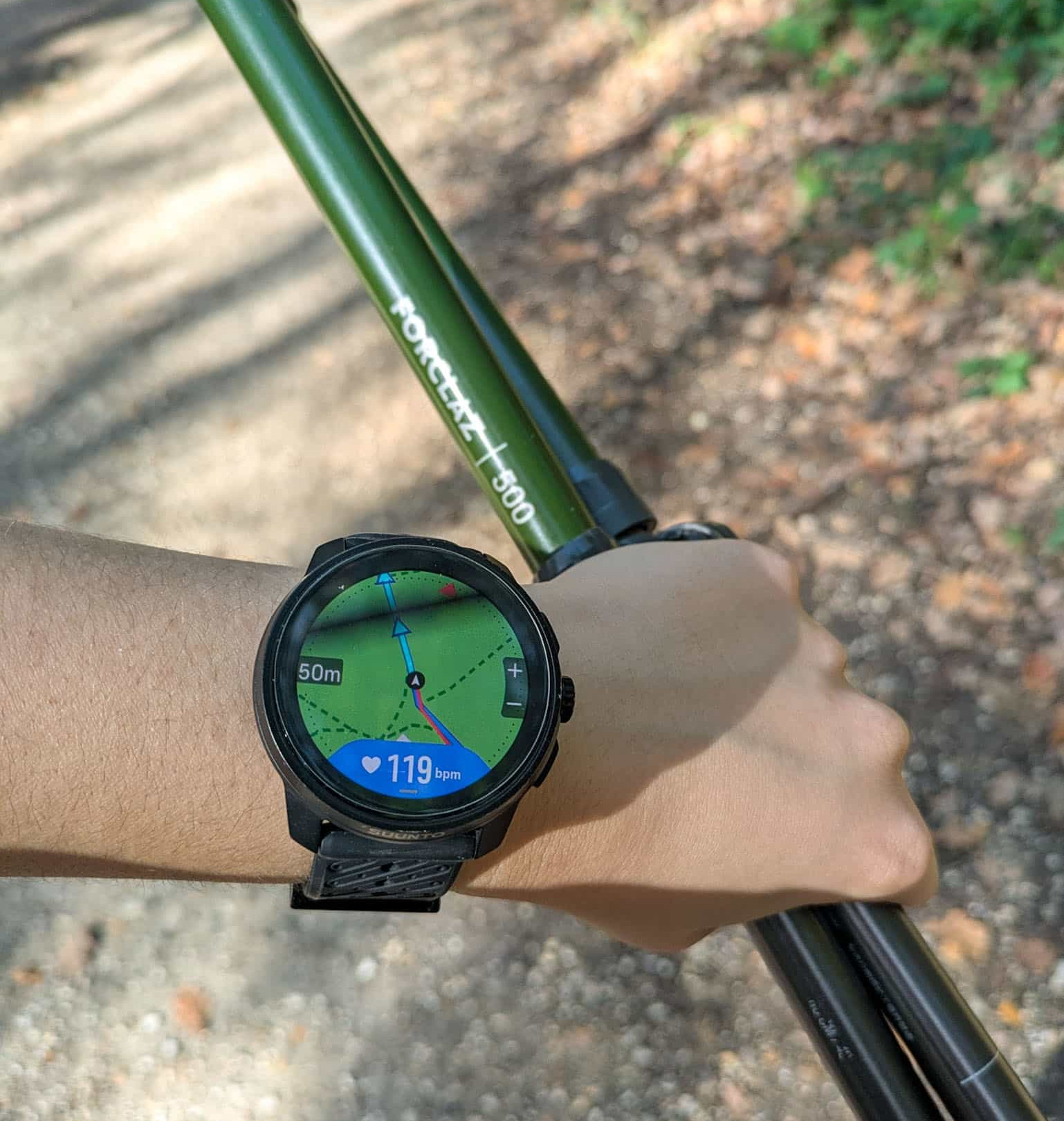
The main reason I bought my Suunto Race S was to be able to follow AllTrails routes directly from my watch, with detailed maps, without having to pull out my phone every few minutes to check if I was still on the right track. To be honest, having a watch with route navigation has been a game changer for hiking. It makes the whole experience much more enjoyable because you can almost completely disconnect from your phone and immerse yourself in nature. I found this much harder when I relied on my phone to navigate, as I was constantly checking the screen to make sure I was following the right trail. In this blog post, I'll show you how to transfer an AllTrails route to your Suunto watch and follow it directly from your wrist.
Which Suunto watches can use AllTrails routes?
Not all Suunto watches support route navigation, and those that do don't necessarily offer the same type of navigation. Some watches only support breadcrumb navigation, while others support both breadcrumb and map-based navigation, allowing you to see your route directly on a detailed offline map.
Breadcrumb vs map navigation

Breadcrumb navigation. Credit: Suunto

Map navigation. Credit: Suunto
The current Suunto watches with route navigation include:
Suunto watch | Breadcrumb navigation | Map-based navigation |
Suunto Race S | ✅ | ✅ |
Suunto Race | ✅ | ✅ |
Suunto Race 2 | ✅ | ✅ |
Suunto Vertical | ✅ | ✅ |
Suunto Vertical 2 | ✅ | ✅ |
Suunto Ocean | ✅ | ✅ |
Suunto 9 Peak Pro | ✅ | ❌ |


How to download an AllTrails map to your Suunto watch
Step 1: Choose your route on AllTrails
Open the AllTrails app or visit the website and find the hiking route you would like to download.
Step 2: Download the GPX file
The good news is that you don't need an AllTrails subscription to download your route as a GPX file, you can do it for free!
On your phone:
Once you've selected your trail, click on the three dots in the top-right corner and select "Export route file."


On your computer:
Once you've selected your trail, click on the three dots in the top-right corner and select “Export map file.”


Step 3: Import the GPX file into the Suunto app
Tap the downloaded GPX file on your phone and select Suunto as the app you want to open it with. Alternatively, you can open the Suunto app, tap the Maps icon in the bottom bar, then tap the + icon and select Import route.
Step 4: Adjust the route on the Suunto app
You can modify your route directly in the Suunto app. You can extend or shorten the hike, add new points, change the default activity, and customize the route display. Once you're done, tap the checkmark to save your changes.
Step 5: Sync your Suunto watch
Once you've finished editing your route, you need to sync it with your Suunto watch. Make sure your watch is connected to your phone via Bluetooth and that the Suunto app is open. The synchronization should happen automatically. Once the synchronization is complete, the route will be available on your watch.
Step 6: Navigate with your watch
Press the top-right button on your watch. Select Navigation, then Routes, and choose the route you want to follow. Select Navigate, and then tap Start to begin. Enjoy !
Before starting, you can also adjust your battery settings. Select Exercise Options → Battery Mode to choose between different GPS accuracy levels and battery consumption settings. This allows you to prioritize either GPS accuracy or battery life, depending on the length of your hike.
I hope you have found this blog post useful!




Comments